
Automate Notion Invoice PDFs with ZENCRUMBS
Set up a reusable invoice template from a Notion database, preview it with a page, and download a ready-to-review PDF.
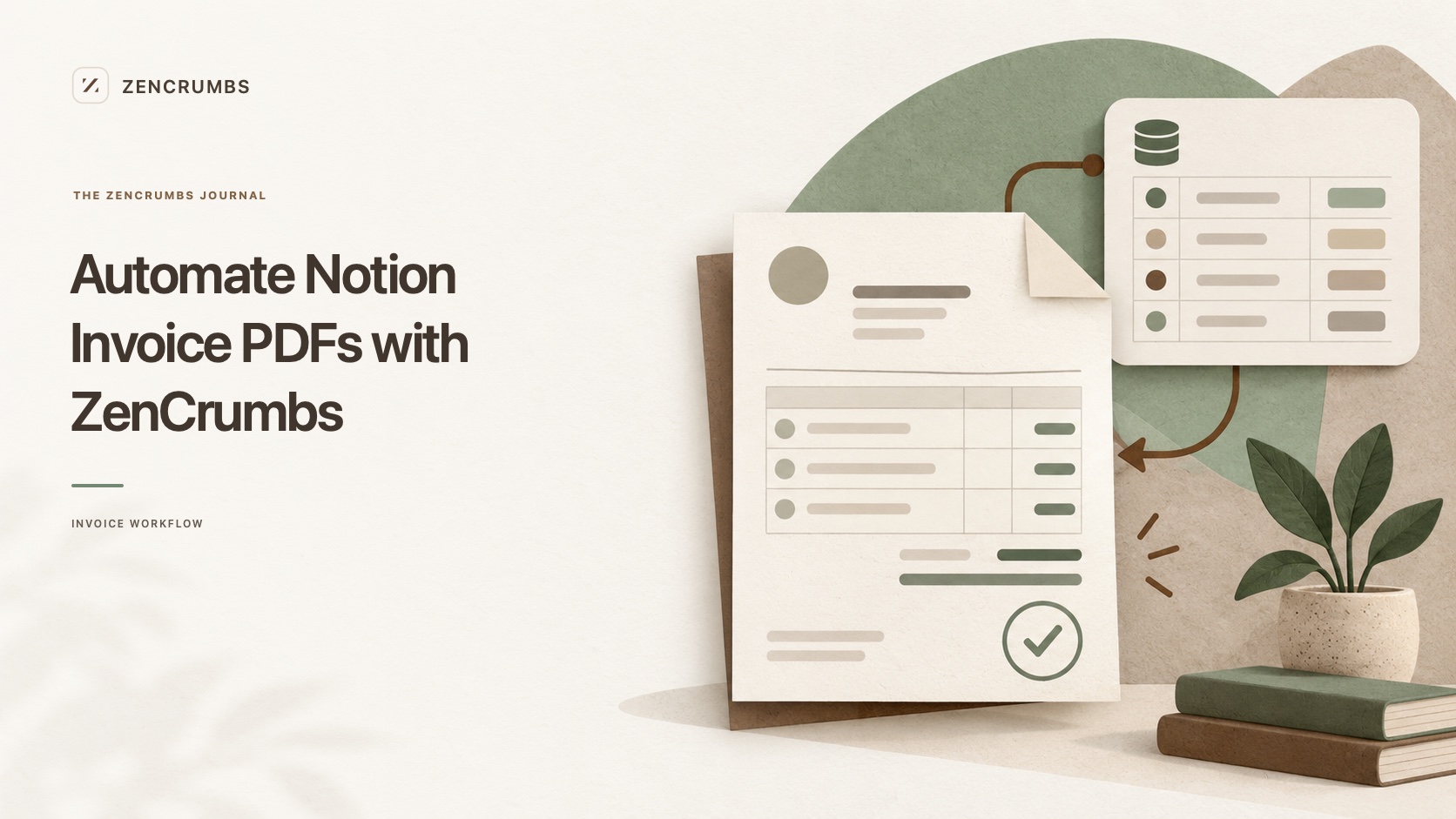
If your invoice details already live in a Notion database, you can use those database pages as the starting point for a repeatable PDF workflow. ZENCRUMBS lets you create the document layout once, place Notion properties where they belong, and review each page before downloading.
That keeps the document structure consistent while the client, dates, and amounts change from one invoice to the next.
Watch the walkthroughs
See how to download PDFs for multiple Notion pages at once, then create a reusable template in ZENCRUMBS.
Batch download
Creating a template
Set up your invoice database
Start with a Notion database that contains the information you want on the invoice. You might include properties for a client, invoice number, issue date, due date, line items, and payment terms. The properties you use depend on your billing process.
Choose a property that has a recognizable value for each page. Then it is easier to select the invoice you want to preview.
Create the invoice template
Connect the database in ZENCRUMBS and create a document template. Add your business details, labels, and invoice sections, then place @ references where Notion values should appear.
For example, add references for the invoice number, client name, and due date beside their labels. A table can help organize line items and totals. Use the editor to shape the layout and apply the document styling you want.
Style tables and repeating page details
Click a table cell to open Cell background colour. Use the full colour picker and transparency slider, or enter a hex value. Select several cells to give an invoice header row a consistent fill.
In Customize PDF, choose A4 or Letter and Portrait or Landscape. Under Repeating page elements, add a header and footer, then choose their alignment, font size, colour, and opacity. Turn on Show page numbers to add custom numbering, such as Invoice · {page} / {pages}. These details appear in the preview and downloaded PDF.
Type / on an empty line and choose Page Break to start a section on a new page. Tables continue by row; an oversized row or image can continue across pages. See the document layout guide for the full controls.
Review and download each invoice
Select a database page and inspect the filled preview before downloading its PDF. Check the client details, dates, amounts, and longer text. If a value is missing or incorrect, update the Notion page and review it again.
The template gives each invoice the same structure. You remain in control of which page you select and when you download its PDF.
On a phone, the page preview scales to fit the screen while keeping the template's paper layout. The animated bar below Download PDF indicates generation is in progress. Complete your browser's Save dialog if one appears. Empty image placeholders and temporary selection highlights are excluded from the PDF.
Keep the workflow dependable
- Use a clear identifying property for each invoice page.
- Keep required invoice values filled in before generating the PDF.
- Preview every invoice before sending it to a client.
- Update the template when your standard invoice layout changes.
For a document that you create only once, a manual export may be simpler. A reusable template is most useful when the same layout needs to be filled from different database pages.
Try it with one invoice
Connect your invoice database, build the basic layout, and preview one page. You can refine the template before using it for the rest of your workflow.
Get started with ZENCRUMBS or visit the getting started guide.
Keep exploring
How to Batch Export Notion Database Pages as PDFs
Create separate PDFs for multiple Notion database pages and download them together in one ZIP with ZENCRUMBS.
Read articleTurn Notion Pages and Databases into Polished PDFs
A practical guide to preparing Notion content, choosing between a one-off export and a reusable template, and reviewing a clean PDF.
Read article
Client Onboarding Packet Template from Notion
Plan a clear welcome packet with a reusable client onboarding checklist, then turn selected Notion database pages into a PDF.
Read article
Client Project Handoff Checklist for Freelancers
Use a practical client project handoff checklist to organize final files, access, open items, and next steps in Notion.
Read article