
Monthly Client Report Template from Notion Data
A practical monthly client report structure for freelancers and agencies, with Notion properties you can reuse in a branded PDF.
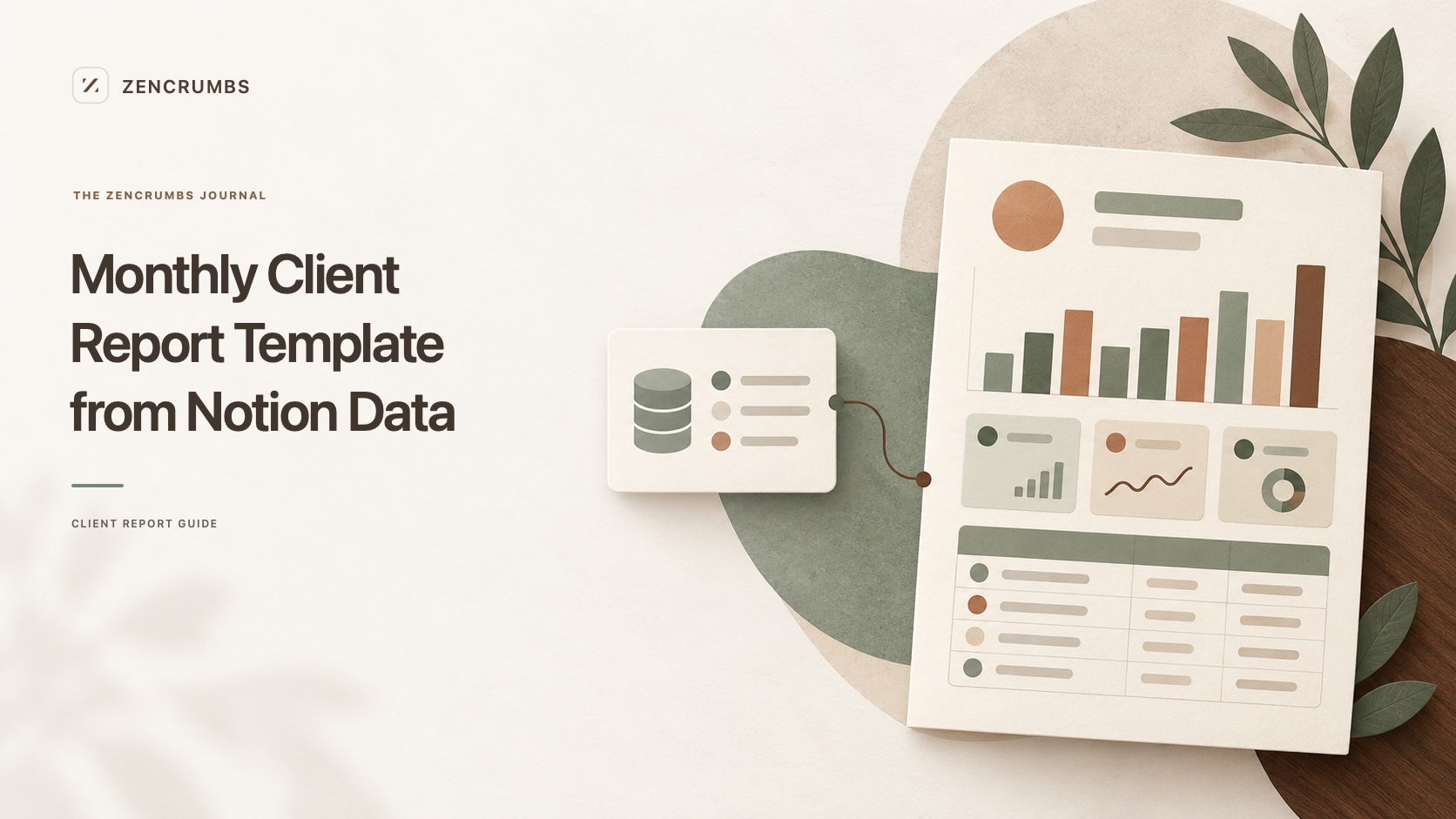
A monthly client report should answer four questions: what changed, what work was completed, what needs attention, and what comes next. A reusable report template helps you present those answers in the same order each month.
If your project and performance details are in Notion, you can keep the source information there and use a database page as the starting point for each report.
What to include in a monthly client report
Choose sections that help the client understand progress and make the next decision:
- Reporting period: the dates covered by the update.
- Short summary: the main result or development this month.
- Metrics: a small set of relevant measures, with labels and context.
- Work completed: deliverables or milestones finished during the period.
- Risks and open items: delays, decisions, or dependencies that need attention.
- Next period: planned priorities and the outcome each supports.
- Client input: approvals, information, or access needed to move forward.
Explain what each metric means and compare like periods. A number without a label, source, or useful context can be hard to interpret.
Organize report data in Notion
For a simple workflow, create one report page per client and reporting period. Include the client, start and end dates, summary, selected metrics, completed work, open items, and next steps. If your source data lives in other databases, add the values or written summary you have reviewed to the report page before creating the PDF.
Keep analysis and recommendations with the people responsible for the work. ZENCRUMBS places values from the selected Notion page into your template; it does not analyze performance data or write the report narrative for you.
Create a reusable report PDF
Connect the Notion database in ZENCRUMBS, choose an identifying property, and create the report layout. Add a heading for each section, then insert @ references where the selected page’s property values should appear.
Select the client and reporting period you want to review. Check that the dates, metrics, and commentary match the source, then look for long text that may need more room. Download the PDF after reviewing the filled preview.
Keep reports clear and useful
- Put the reporting period near the top of the document.
- Use the same metric names and definitions from month to month.
- Separate completed work from upcoming plans.
- Call out decisions or client input with a clear owner and date.
- Verify the numbers and interpretation before sharing the PDF.
For invoices and other repeat documents, see our guide to automating invoice PDFs from Notion. If the work is still at the pitching stage, start with this freelance proposal template in Notion.
Start with the report clients ask for most
Build one report around the information you already review each month. Keep the first version focused, use it for a reporting period, and adjust the sections when clients need different context.
Get started with ZENCRUMBS or visit the getting started guide.
Keep exploring
How to Batch Export Notion Database Pages as PDFs
Create separate PDFs for multiple Notion database pages and download them together in one ZIP with ZENCRUMBS.
Read articleTurn Notion Pages and Databases into Polished PDFs
A practical guide to preparing Notion content, choosing between a one-off export and a reusable template, and reviewing a clean PDF.
Read article
Client Onboarding Packet Template from Notion
Plan a clear welcome packet with a reusable client onboarding checklist, then turn selected Notion database pages into a PDF.
Read article
Client Project Handoff Checklist for Freelancers
Use a practical client project handoff checklist to organize final files, access, open items, and next steps in Notion.
Read article